
How to sync only selected Shopify products to Webflow with collection and tag filters
Storesynk can limit the products that are synced to a Webflow project's CMS to the products in selected Shopify collections or with selected tags. Each connected Webflow project has its own filters.
By default Storesynk syncs every product of your Shopify store to the Webflow CMS. The collection and tag filters in the Storesynk Webflow App limit the sync to the products in selected Shopify collections, to the products with selected tags or to both. The filters are stored per Webflow project, so when one Shopify store is connected to several Webflow projects, each project can sync a different part of the catalog.
In this guide you are going to understand:
- Where the collection and tag filters are located
- How to limit the sync to selected collections or tags
- How the two filters are combined with each other and with excluded products
- How the filters affect products that are already in the CMS
① Before you start
- Storesynk is installed on the Webflow project and the Shopify store is connected. If you have not set up the product sync yet, see Import and Sync Shopify Data to Webflow CMS.
- The products are organized with Shopify collections or tags that describe the subset you want to sync, for example a Wholesale collection or a brand tag. Automated and manual collections both work.
- If you are connecting several Webflow projects to one store, see How to connect one Shopify store to multiple Webflow sites.
② Configure the filters
- Open the Storesynk Webflow App on the Webflow project and go to Import & Manage Shopify Data. During the first setup of a project the same settings are available under Advanced options.
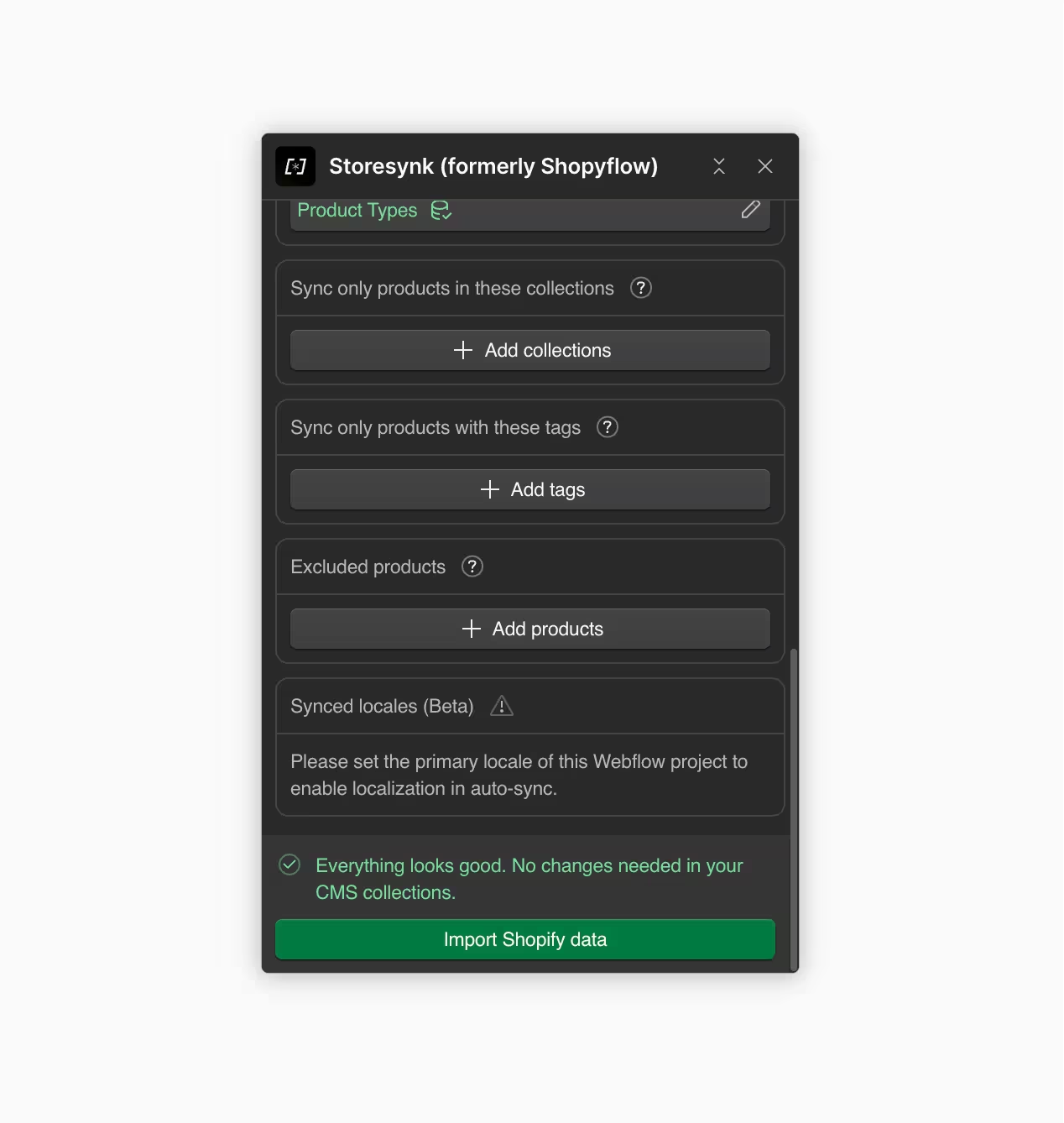
- Scroll to Sync only products in these collections, below the collection pickers for Product Data and Shopify Taxonomies.
- Click Add collections, select the collections and click Done. The selected collections are listed on the card and the card title shows the number of selected items.
- To filter by tags, scroll to Sync only products with these tags, click Add tags, select the tags and click Done.
- Check the Excluded products card. Excluded products are never synced, even when they match the filters.
- Click Save changes.
- Click Import Shopify data, or Re-import Shopify data if the project has synced before. When auto-sync is enabled, the filters are also applied to product changes coming from Shopify.
③ How the filters are combined
The filters are include rules. A product is synced only when it matches all rules that are set:
- Within a filter, a product needs to match one of the selected items. With three selected collections, a product in any one of them matches.
- Between the two filters, a product needs to match both. When collections and tags are both set, a product has to be in one of the collections and have one of the tags.
- A filter with no selection does not add a rule. When both filters are empty, the whole catalog is synced.
- Excluded products are checked first. A product in the Excluded products list is not synced regardless of the filters.
- Tag matching is case-insensitive and ignores surrounding spaces.
Example with one Shopify store and three Webflow projects:
- Retail site: no filters, the whole catalog is synced.
- Skincare brand site: the collections filter is set to the Skincare collection.
- Wholesale site: the tags filter is set to the
wholesaletag. A product that receives the tag in Shopify is synced to this site on its next update.
The filters of one project do not affect the other projects.
④ Effect on existing CMS items
- Products that no longer match the filters are not removed from the CMS. Storesynk stops updating them. Delete them in the Webflow CMS if they should not stay on the site. Products that are deleted in Shopify are still removed from the CMS.
- Products that start matching are synced by auto-sync on their next update in Shopify. Use Re-import Shopify data to sync them immediately.
- Shopify collections are always synced in full to the Collections CMS collection. Tags, vendors and product types are created from the synced products, so only the ones used by synced products exist in the CMS.
- The pickers list the collections and tags that are used by at least one product. Empty collections and unused tags are not listed.
- On the free plan the first five matching products are synced.
Troubleshooting
A product is not synced. Check that the product is in one of the selected collections and, if tags are set, that it has one of the selected tags. Check that it is not in the Excluded products list and that it is published to the Headless sales channel in Shopify.
A tag or collection is not listed in the picker. The tag is not assigned to any product, or the collection has no products. Assign it in Shopify and reopen Import & Manage Shopify Data.
Products outside the filters are still in the CMS. The filters stop updates but do not delete existing CMS items. Delete them in the Webflow CMS and publish your site.
