
Free ON WEBFLOW.IO DOMAINS
How to Localize your Shopify store with the Webflow Storefront
Take the following steps to make sure you set up your localization settings correctly.
Webflow Localization
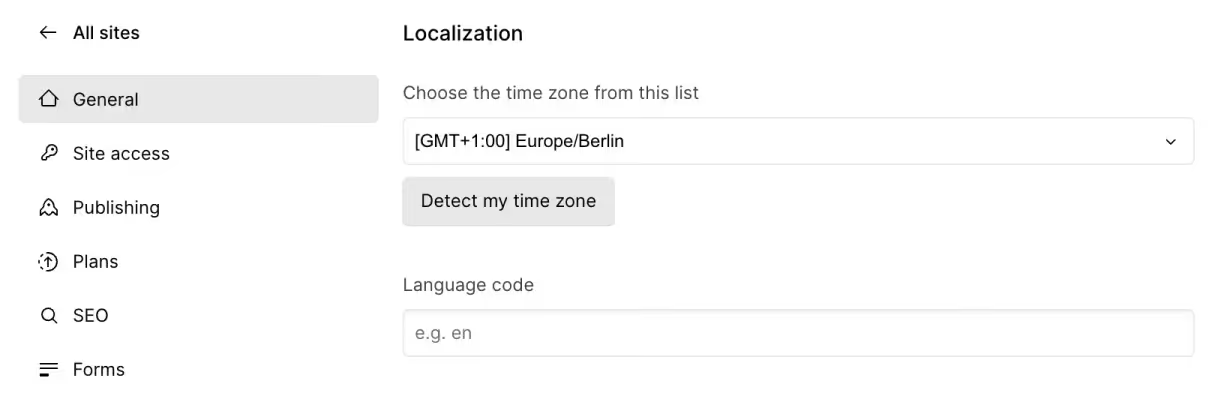
Make sure that you do not have a default language set in your site settings. You can do so by leaving the language code field empty:
CMS Auto-Sync with Webflow Localization
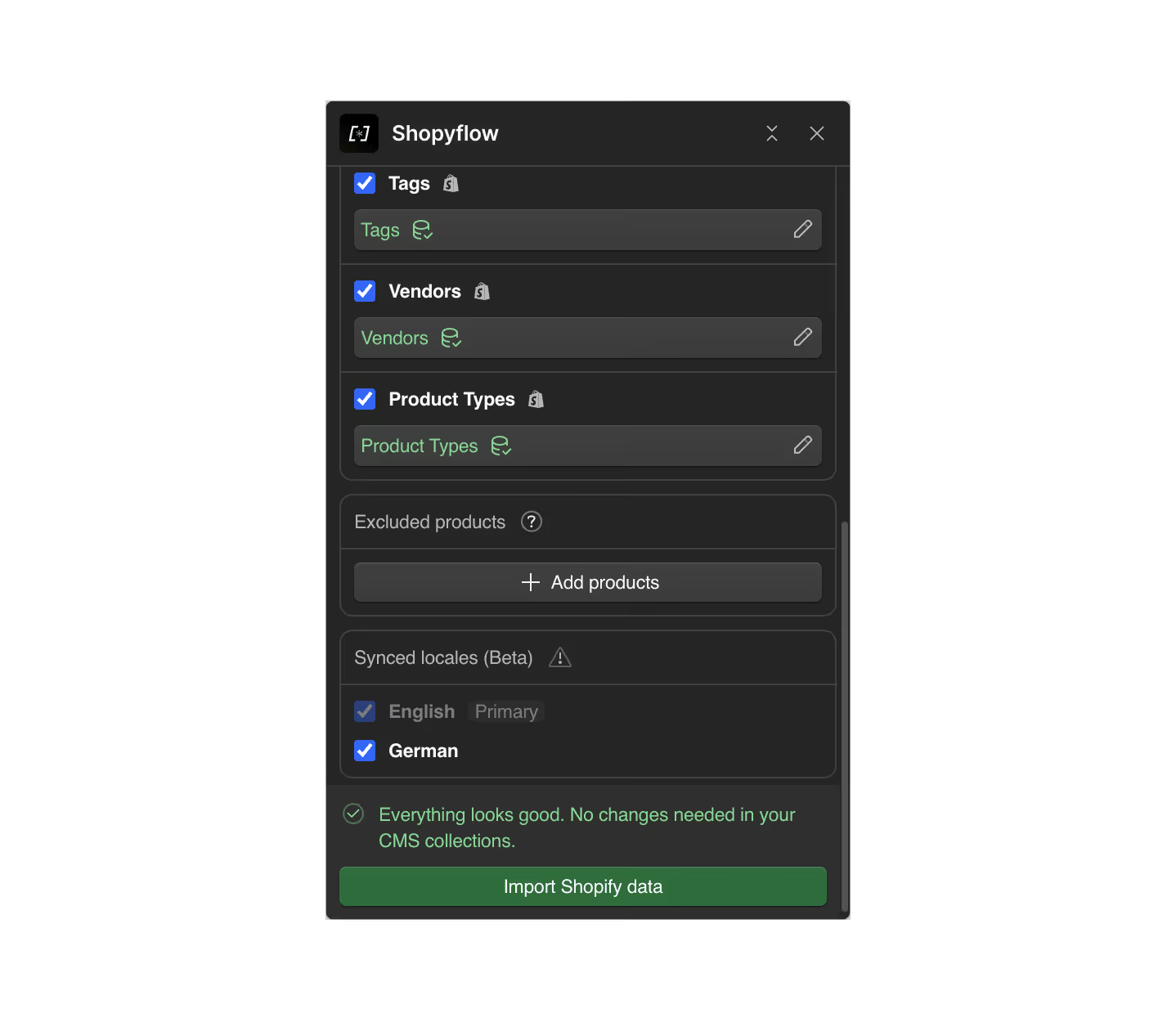
Storesynk also makes it possible to sync your translated Shopify data into Webflow CMS. Head over to Storesynk Webflow App > Import & Manage Shopify Data and scroll to the bottom. You can enable auto-sync with localization by checking your Webflow locales.
When using CMS auto-sync with localization you need to keep these in mind:
- You should always do the translations in Shopify. You can use Shopify Translate & Adapt app to translate your content.
- Storesynk will sync your translations to the correct locales in Webflow CMS.
- Manual translations in CMS fields that are used by Storesynk will be overwritten by Storesynk.
- CMS fields which are not used by Storesynk will remain untouched and not be overwritten. This means you can add custom fields to your CMS collections and they will remain untouched.
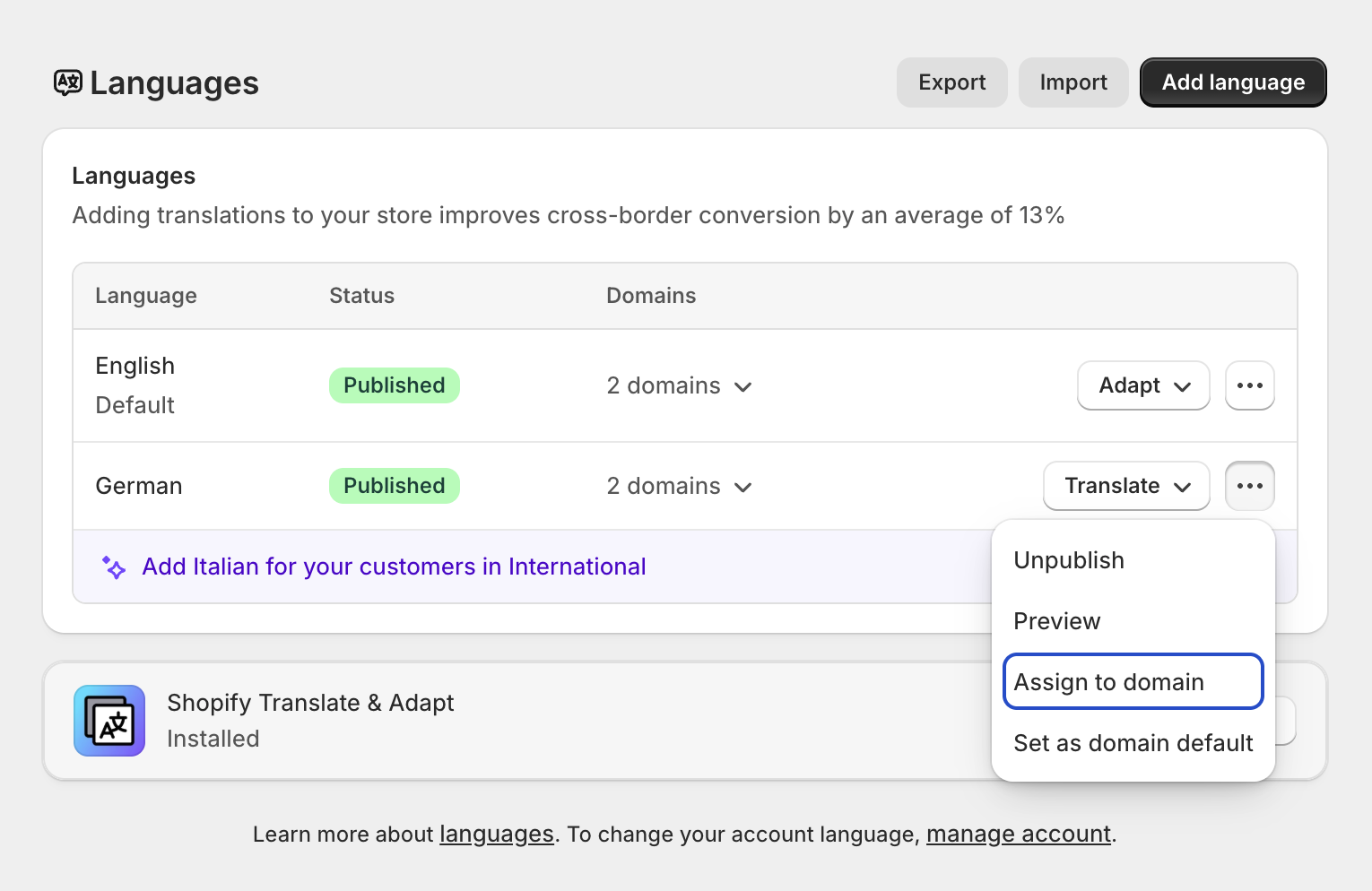
- Go to Shopify Admin > Languages and click on the three dots next to your additional locale(s) to make sure your languages published and assigned to your domains.
No items found.
No items found.
No items found.
Next:
