
How to create gated pages in Webflow with Shopify customer accounts
Make entire Webflow pages available only to logged-in Shopify customers or to customers with specific tags. Everyone else is sent to login or to a fallback page.
Gated pages let you make entire Webflow pages available only to logged-in Shopify customers, or only to customers with specific tags. Use them for wholesale hubs, member areas, VIP content, customer resources or anything else that should stay behind a login.
Everything is configured in the Storesynk Webflow App. You do not write any custom code or add any attributes: pick the pages, optionally pick the tags and Storesynk handles the login round trip and the redirects.
In this guide you are going to learn:
- How to enable customer-only content and set up the auth callback page
- How to gate pages for all logged-in customers or only for customers with specific tags
- How gating behaves for each type of visitor and how to avoid the common pitfalls
① Before you start
Gated pages build on Storesynk's customer accounts setup. Make sure you have the following in place:
- Shopify's new customer accounts with a Customer Account API Client ID from the Shopify Headless app, entered in Storesynk Webflow App > Installation > Customer Accounts. Both modes work with gated pages: Customer portal in Shopify and Customer pages in Webflow. The full setup is covered in How to use passwordless Shopify customer accounts in Webflow with Storesynk.
- Storesynk engine 2.3.0 or newer. If the customer-only content settings are greyed out in the app, change the version in Storesynk Webflow App > Installation and save.
- A login entry point on your site, for example the User Menu component from the Store Builder.
If you plan to gate pages for wholesale buyers, set up your customer groups first as explained in how to sell wholesale in Webflow with Storesynk.
② Enable customer-only content and the auth callback page
Gated pages work through Storesynk's callback login flow. A logged-out visitor opening a gated page is sent to Shopify's secure login screen, signs in and returns to a callback page on your site, where Storesynk completes the session and forwards them back to the page they wanted. The callback page is a technical interstitial, your visitors only ever see it for a moment.
- In Webflow, create a blank page for the callback, for example /auth-callback. The page needs no content, Storesynk handles everything on it.
- In the callback page's settings, turn off sitemap indexing and add
<meta name="robots" content="noindex">to the page's head custom code. - Go to Storesynk Webflow App > Installation > Customer Accounts and turn on Enable customer-only content in Webflow.
- Select your new page as the Auth Callback Page.
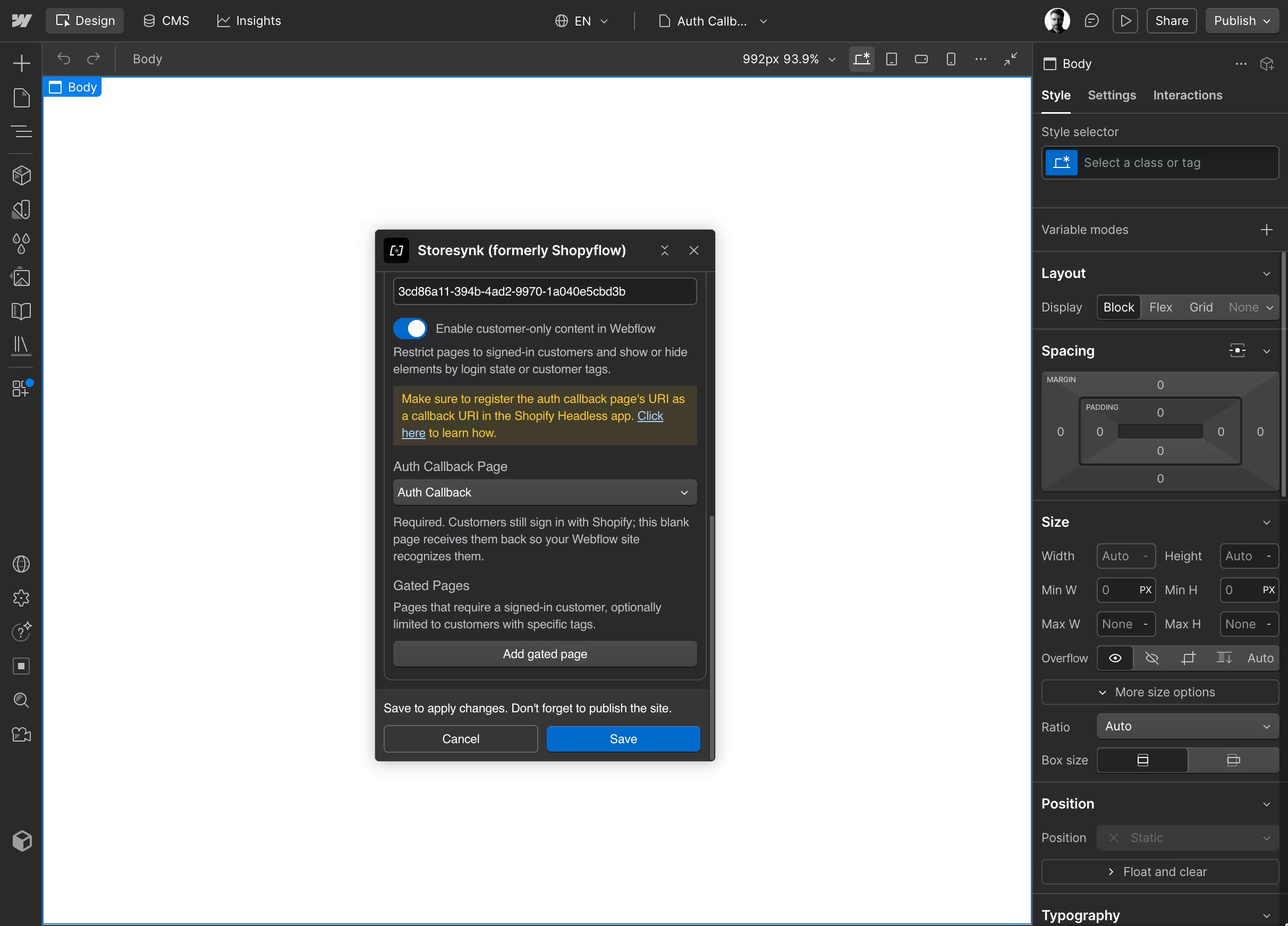
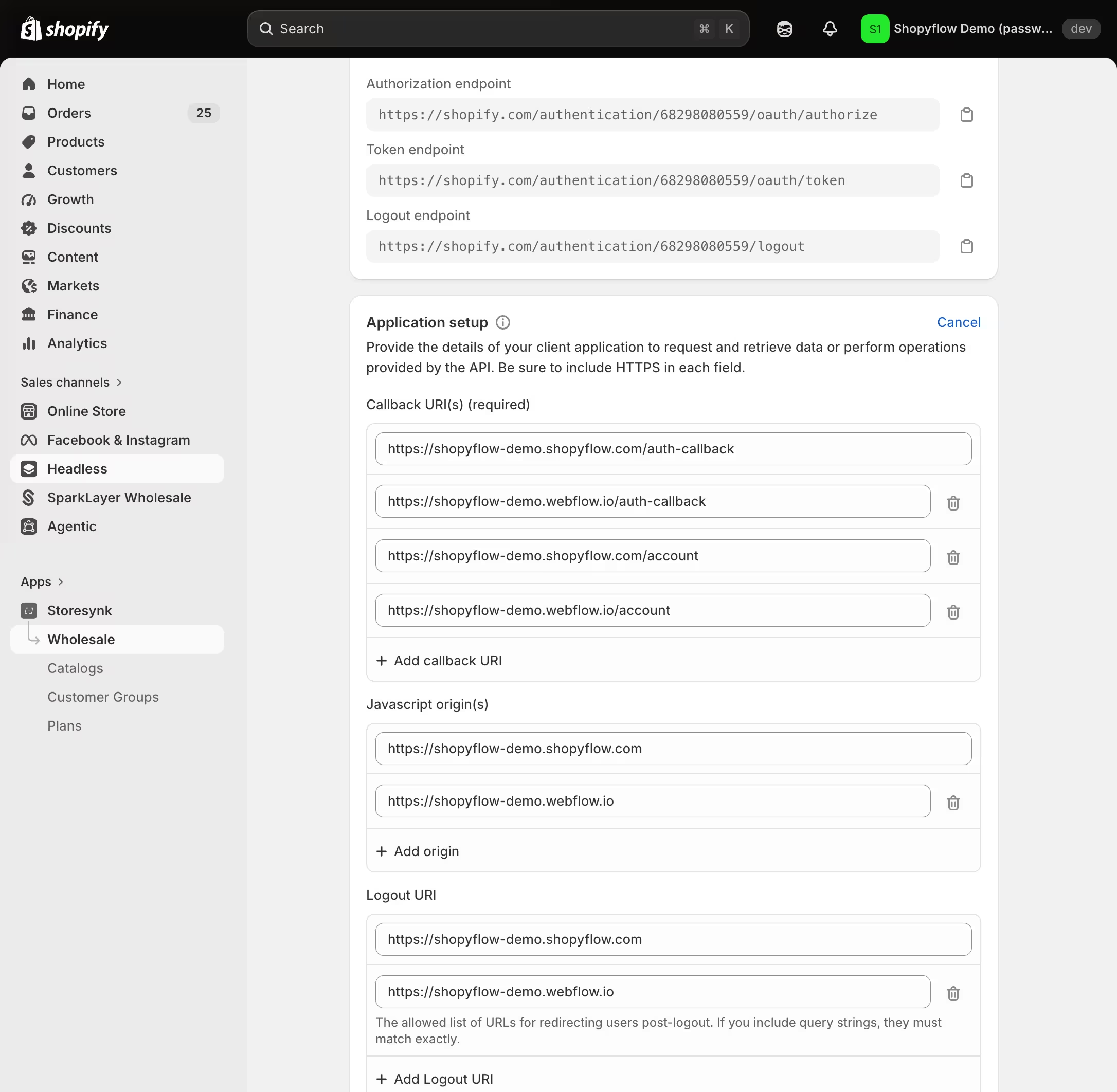
- Register the callback page as a Callback URI in the Shopify Headless app: open your storefront, go to the Application setup section and add the callback page's URL for both your custom domain and your webflow.io domain. If your site is served on the www subdomain, add the www version too.
Example URIs:- https://storesynk-demo.com/auth-callback
- https://storesynk-demo.webflow.io/auth-callback
- Save & publish your site.
Already completed the Enable customer-only content (callback login) step of the passwordless guide? You are set, continue with step ③.
③ Add your gated pages
Each gated page is one row in the gated pages list. Add as many rows as you need.
- Go to Storesynk Webflow App > Installation > Customer Accounts and find the Gated Pages list under the customer-only content toggle.
- Click Add gated page and fill in the row:
- Page: the Webflow page to gate. Any logged-out visitor opening it is sent to login and returned to the page afterward.
- Customer tags (optional): restrict the page further to logged-in customers carrying at least one of the listed tags. Pick one of your wholesale customer group tags from the dropdown or type any custom tag and click Add.
- Fallback page (optional): where a logged-in customer without a required tag is sent. When no fallback is set, they are sent to your home page.
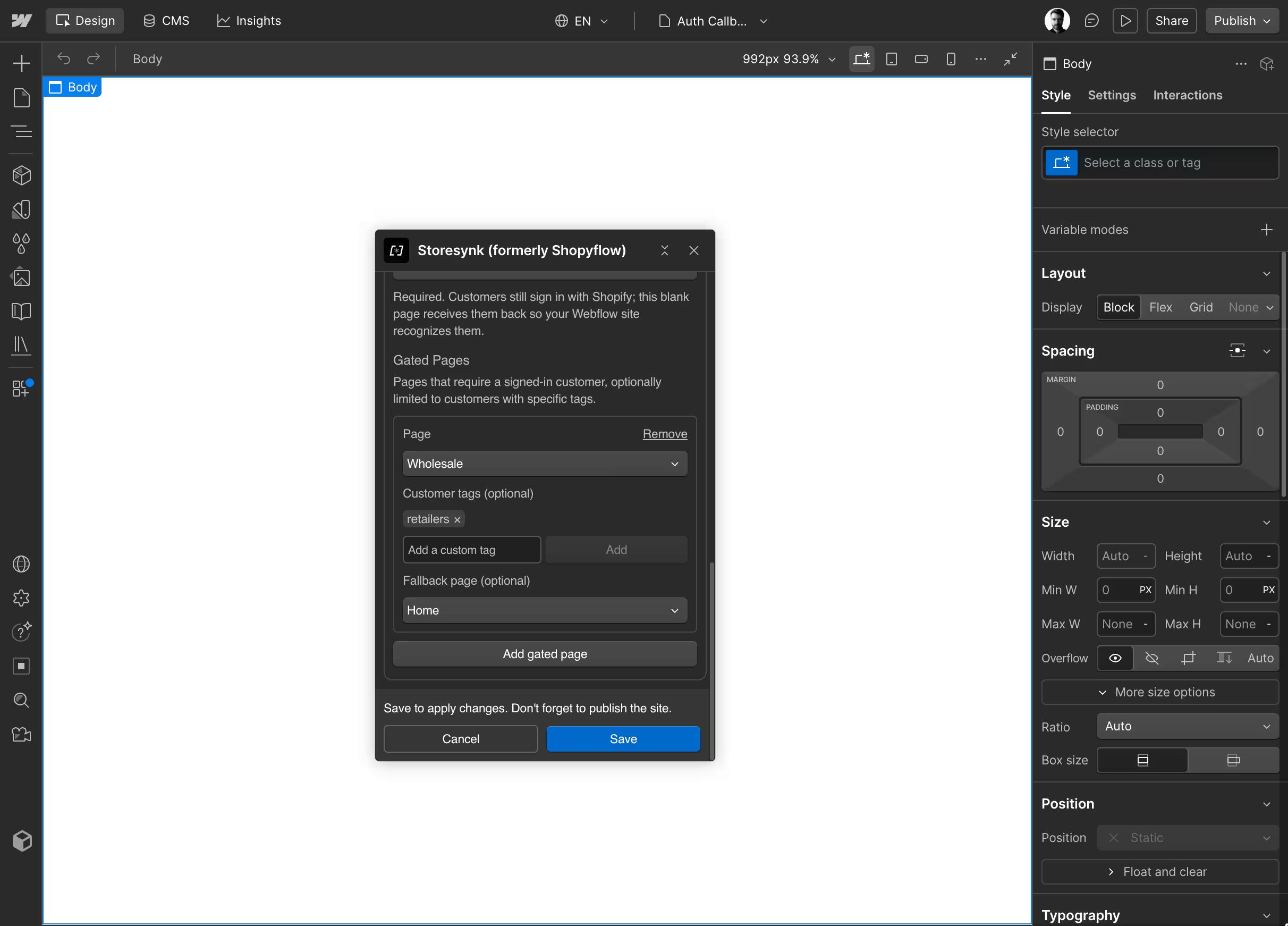
- Save & publish your site.
④ Gate pages by customer tags
Tags turn a login wall into an access level. A row without tags admits every logged-in customer. A row with tags admits only logged-in customers carrying at least one of the listed tags. Matching is case-insensitive and ignores surrounding spaces, so a customer tagged Wholesale passes a row that requires wholesale.
Where the tags come from is up to you:
- Wholesale customer groups. If you use Storesynk's Wholesale feature, the tag dropdown lists your customer group tags, so a wholesale hub is a single row: the hub page plus your group's tag. Approving a wholesale application adds the tag to the customer automatically.
- Manual tags in Shopify. Add any tag to a customer in Shopify Admin > Customers and use the same tag on the row, for example
vipfor early access drops ormemberfor a paid community.
Design the fallback deliberately. The fallback page is what a logged-in customer without the tag sees instead of the gated page, so make it useful: a page explaining how to get access, with a wholesale application form or a contact link. Without a fallback these customers land on your home page with no explanation.
Three pitfalls to avoid (the app also warns you about these inline):
- Do not gate your account, login or auth callback page. Gating them can lock customers out of signing in.
- Do not use a gated page as a fallback. A customer without the required tag would be redirected in a loop.
- Set a fallback whenever a row has tags. It is optional, but the home page default tells your customers nothing about why they were turned away.
⑤ How gating behaves on your published site
Once your site is published, Storesynk enforces every row before the page content is usable:
- Logged-out visitor: sent to Shopify's login screen, then returned to the gated page they originally opened.
- Logged-in customer who meets the row's requirements: the page renders normally.
- Logged-in customer without a required tag: redirected to the row's fallback page, or to the home page when the row has none.
- Access revoked mid-session: tag checks run instantly from the last known state and again once fresh customer data arrives, so a tag removed in Shopify redirects the customer out on their next page view. A customer logged out remotely, for example from the Shopify customer portal, is bounced back to login when they open a gated page.
Your account page and order detail pages are protected automatically, no row needed: logged-out visitors opening them are always sent to login.
⑥ Combine gating with element visibility
Gated pages control whole pages. For individual elements, use the visibility attributes on any element in the Designer:
sf-authshows an element only to logged-in customers:sf-auth="1"for anyone logged in, orsf-auth="wholesale,vip"for customers with one of those tags. The element is removed from the page for everyone else.sf-unauthshows an element to logged-out visitors. With a tag value likesf-unauth="wholesale"it also stays visible to logged-in customers without the tag, which makes it the natural home for an "apply for access" call to action.
A common combination: gate the wholesale hub page by the group tag, show the hub link in your navbar only to customers who can actually open it with sf-auth="wholesale" and show the application banner to everyone else with sf-unauth="wholesale".
The attributes are covered in detail in the passwordless customer accounts guide.
Troubleshooting
The customer-only content settings are greyed out. Gated pages need Storesynk engine 2.3.0 or newer. Change the version in Storesynk Webflow App > Installation and save.
A logged-in customer keeps being sent to login. Usually a URI mismatch in the Shopify Headless app. The registered callback URIs must match the exact host your site is served on: register your custom domain, your webflow.io domain and the www version of each. Then test in an incognito window.
A customer with the right tag lands on the fallback page. Compare the tag on the row with the customer's tags in Shopify. Matching is case-insensitive but a typo will not match. Tags added while the customer was logged in are picked up when they log out and back in.
Visitors bounce between two pages. A fallback page that is itself gated creates a redirect loop. Use an ungated page as the fallback.
The gated page shows up in search results. Gating happens when the page is opened in a browser and does not remove the page from search indexes. Turn off sitemap indexing in the gated page's settings and add a noindex meta tag, the same way you did for the callback page.
