
Related Products Module
Shopify Storefront data and cart logic is bound to your Webflow elements through Shopyflow attributes. Connecting your Webflow site to Shopify is done by adding custom attributes to your Webflow elements.
Yet, you are not required to type or edit attributes manually. Shopyflow provides you with the pre-configured components needed to create your store, as copyable Webflow elements right in Webflow designer.
All the copyable Shopyflow Components are native editable Webflow elements. There is no layout or styling limitation on any element.
In the below image hover your mouse on the hotspots to see all the required Shopyflow attributes to build a product page like this in Webflow

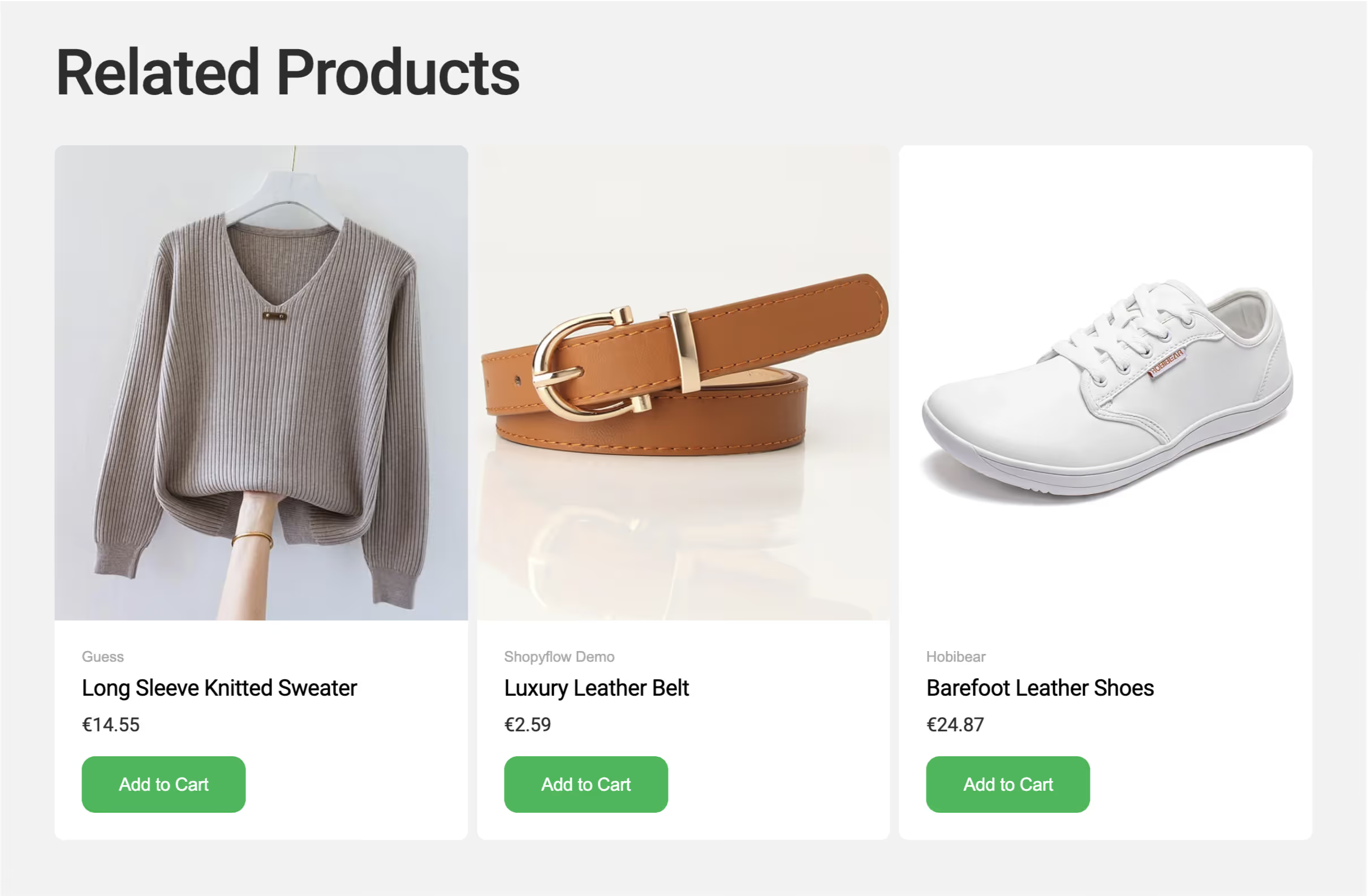
Related Products Module lets you show related products of a selected product. The related products are configured in Shopify in the product settings through metafields.
Related Products Module offers an advanced way of showing related products by using variants. This means you can display a specific variant (e.g. Blue/Medium) of a product as a related product and allow quick add to cart.
This component is made up of three sub-components:
- Related Products Container: Limits the borders of the module as an outer wrapper element.
- Related Products List: The looping container of the related product items.
- Related Products Item: Related product card which is populated dynamically with Shopify data on page load.
Setting up the module
Follow the below steps to configure your Related Products module.
① Create the metafield in Shopify
You can skip this step if you already created the required metafield Storesynk Related Products.
- Choose a product and go to its settings in Shopify and scroll down to product metafields.
- Click View All.
- Click View definitions on the top right corner.
- Click Add definition button on the top right corner.
- Give your metafield the following name:
Storesynk Related Products - Remove anything that's written in the Namespace and key field and enter the following value:
shopyflow--recommendation.related_products - Click Select type and choose Product variant from the list. Choosing product variant as type will allow you pick a specific variant of a product as a related product.
- Click List of product variants to allow choosing multiple related product variants.
- Click Save.
- Make sure the newly created metafield is pinned.
② Choose related products (variants)
- Choose one product and go to its settings in Shopify and scroll down to product metafields section.
- Click on the Storesynk Related Products metafield.
- Choose the variants that you want to use as related products.
- Save the product.
③ Add the Related Products Module to your page
- Navigate to this link and copy the element.
- Go to Webflow Designer and paste the element on the page.
- Select the outermost element of the pasted element (Related Products Container)
- with CMS: Connect the sf-related-products attribute value to the product ID field in the CMS.
- without CMS: Enter a product ID manually as attribute value. e.g. sf-related-products="9848780620079"
- Publish your site.
- By default the title of the products in the Related Products Module take the customer to the respective porudct pages. Take a look at the following section if your product page path is not "products".
If you are using a product page path other than "Products" do the following !
If you are using a product page path other than "products", you need to add the product-page-path attribute to your Storesynk Engine code snippet.
For example if your product page path is "articles", you need to add product-page-path="articles" attribute to your existing Storesynk Engine code snippet as shown below.
Do NOT add a second Storesynk code snippet to your Webflow site or use an example code snippet (like the one above) directly. Update your existing Storesynk code snippet instead.
Webflow app usage
Webflow app settings
Inner components
Module contents
Available methods
Related Products Container
Contains the Related Products Module components. It is the outermost element of the module. Related Products Container is a Div Block with the sf-related-products attribute.
Related Products List
Contains the list of the Related Products Items. Related Products List is a Div Block with the sf-related-products-list attribute. By default it will show 3 search result items at a time. You can use limiter utility attribute to show any number of related products in your list (as long as they are set in Shopify).
Related Products Item
Contains the product information for each related product item. Related Products Item is a Div Block with the attribute sf-related-products-item.
Storesynk requires you to have at least one Related Products Item component including the children components to be used as a template. The Related Products Item template is cloned and iterated for all the related products and appended into Related Products List.
Component
contents
State management
Related Utilities
