
Product List
Shopify Storefront data and cart logic is bound to your Webflow elements through Shopyflow attributes. Connecting your Webflow site to Shopify is done by adding custom attributes to your Webflow elements.
Yet, you are not required to type or edit attributes manually. Shopyflow provides you with the pre-configured components needed to create your store, as copyable Webflow elements right in Webflow designer.
All the copyable Shopyflow Components are native editable Webflow elements. There is no layout or styling limitation on any element.
In the below image hover your mouse on the hotspots to see all the required Shopyflow attributes to build a product page like this in Webflow

The Product List component is the Collection List Element that features the Storesynk Products Collection. Every Collection Item in the Product List is a Buy Module that can be filtered in real-time using the Taxonomy and Option Filters.
Configuring the Product List
1. sf-list attribute must be added to the Collection List element that is the immediate parent of the Collection Items.
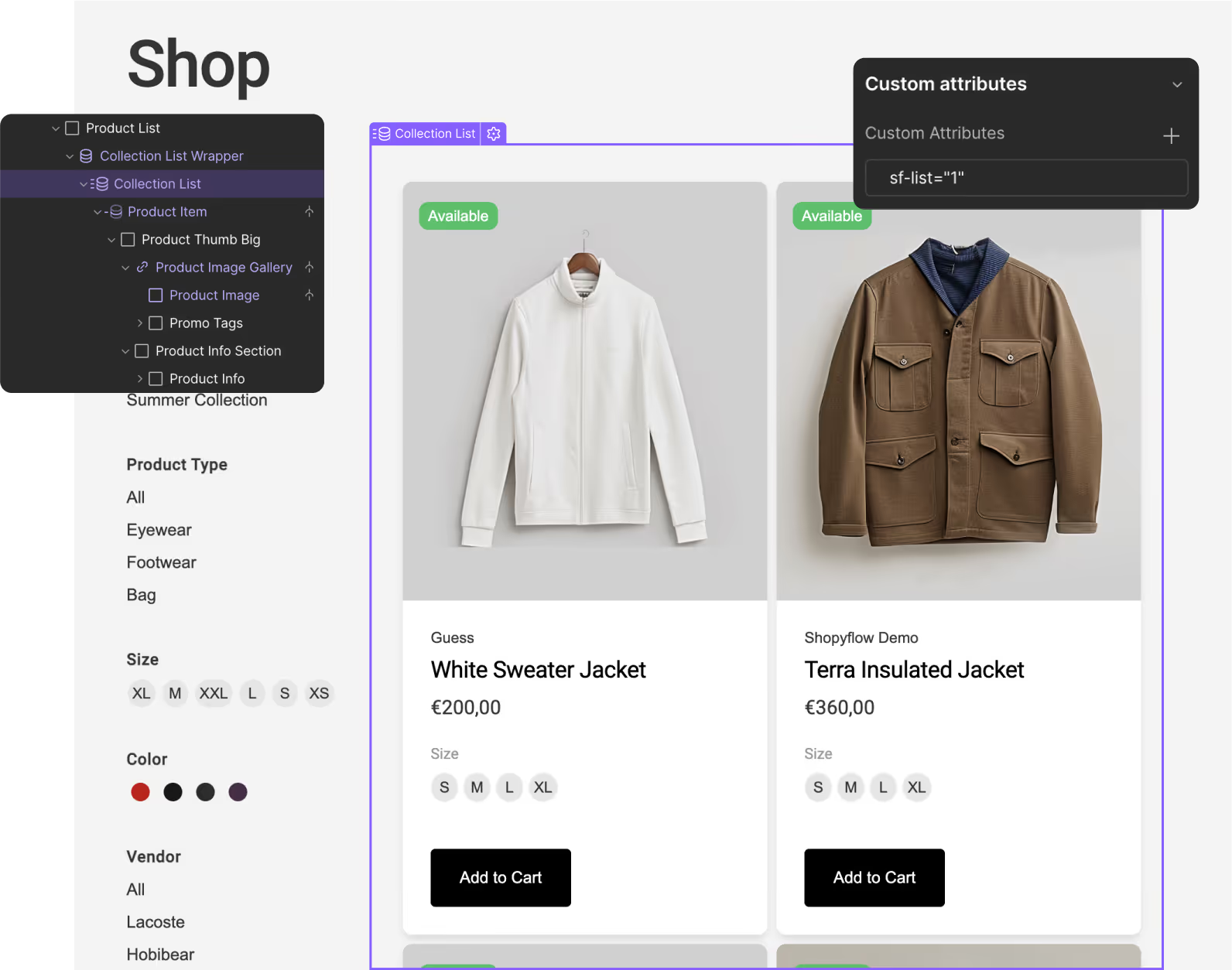
2. Every Product Item must be a Product Container that has a sf-product attribute with the Product ID set as it's value and sourced from the CMS.

Webflow app usage
Webflow app settings
Inner components
Module contents
Available methods
Product Container
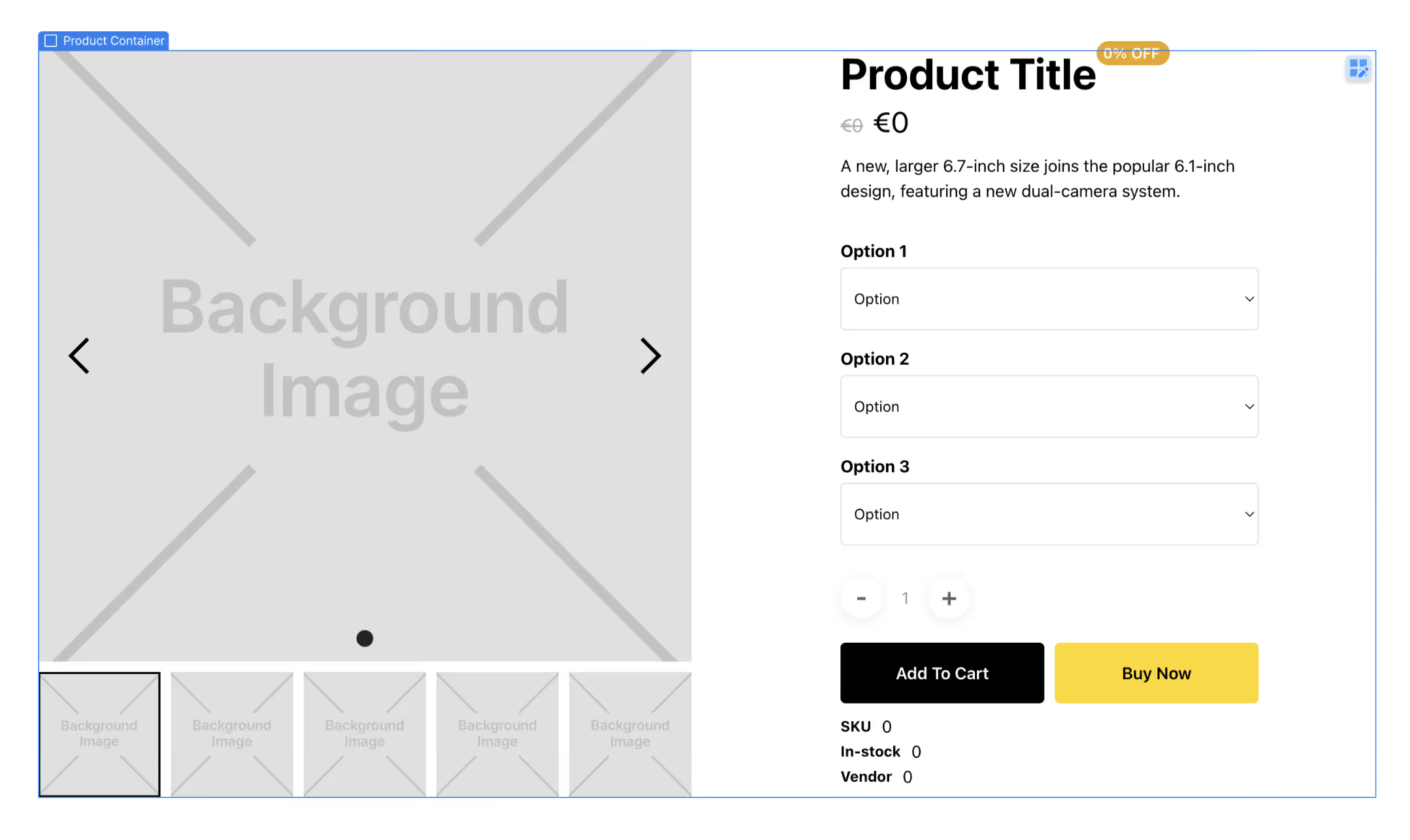
Product container component provides product context to the Buy Module. It is the outermost element of the Buy Module. Product Container is a Div Block with the sf-product attribute. The attribute stores the {Shopify Product ID} as the value.
Component
contents
Product Container
Product container component provides product context to the Buy Module. It is the outermost element of the Buy Module. Product Container is a Div Block with the sf-product attribute. The attribute stores the {Shopify Product ID} as the value.
Webflow app usage
In the Shopyflow app
- Click Add New
- Select Product Container from the list
- In the opening screen select the product
- Click Copy component
- Paste the Product Container component anywhere in the page
Webflow app settings
Product
Select the context product that you are building a Buy Module for.
Sub-product
Switch on to make the product container a Sub-product container.
CMS
Switch on if you're sourcing the Product ID from the CMS.

State management
Related Utilities
